APIs
This guide covers how to use the API tools provided by SAGE.
API Authentication
API access is authenticated using credentials from a configured STEP user account. When you add a system in SAGE, you provide the User ID and Password for this account. For simplicity, using a dedicated local service account in STEP with only the necessary privileges is highly recommended. SAGE does not support STEP accounts using SSO yet.
The first time you use an API feature for a system, SAGE uses these credentials to request a bearer token from STEP. This token is then cached to expedite subsequent API calls. Since bearer tokens have a limited lifespan, SAGE automatically handles token expiration by requesting a new one when the current token is no longer valid. The logic behind this is the TTL or 'time to live' of the token. So if a token is older than the TTL defined, it's automatically discarded and a new one is requested. The default TTL for a token is 5 minutes.
Runtime Configuration
Each API page features a 'Configuration' accordion at the top. This section, collapsed by default, displays the default User ID, Context, and Workspace that were configured when the system was added. For one-off operations, you can temporarily override these default settings directly within the accordion. This allows you to execute a specific action with different user credentials or a different context without changing the system's primary configuration.

REST API Interface
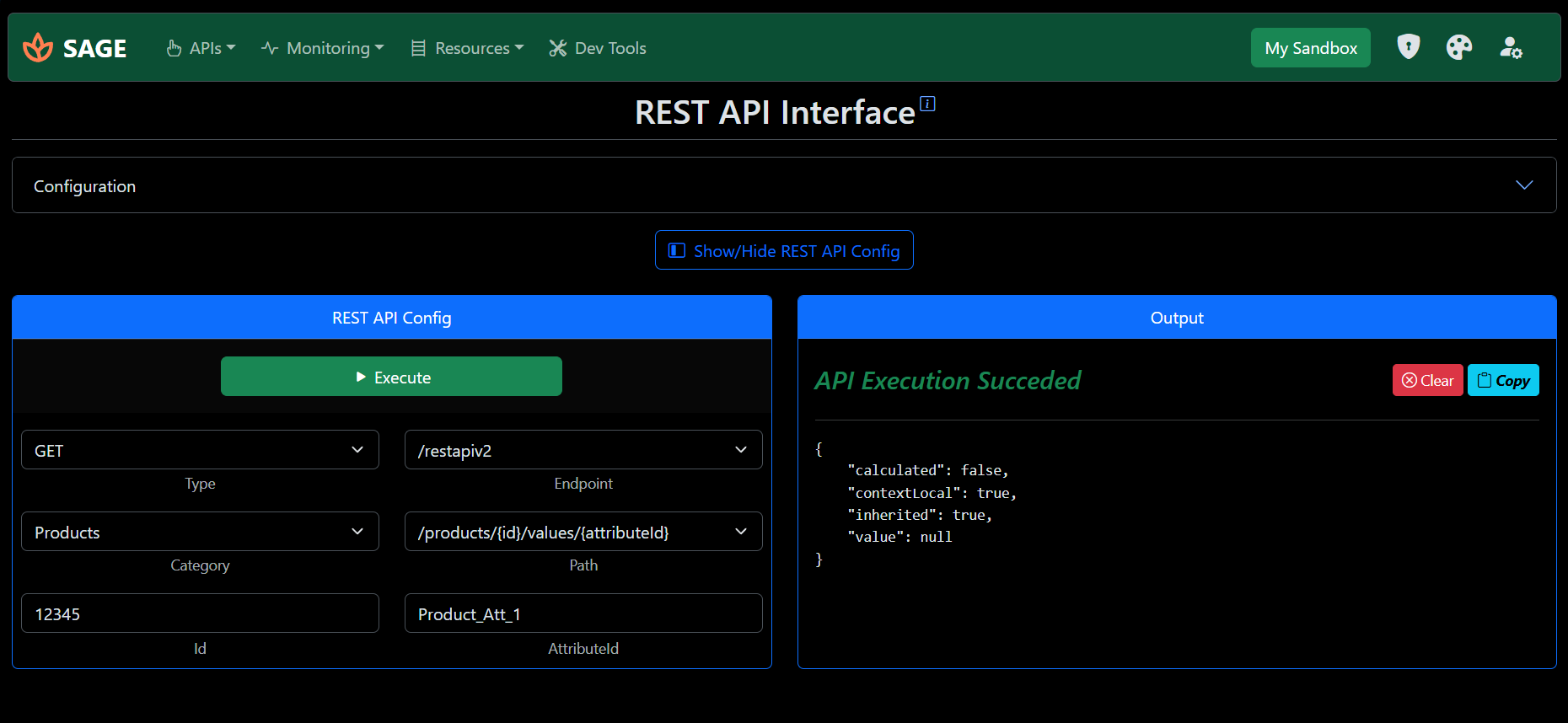
SAGE provides a user-friendly interface for interacting with the Stibo STEP REST API v2. This feature, accessible from the main navigation under APIs > REST API, simplifies the process of executing REST API calls against your configured system.
The page is organized into three main parts: the 'Configuration' accordion for authentication settings, the request builder, and the 'Output' panel to display results.
Constructing a Request
Within the request builder, you can construct your API call by selecting:
- The HTTP method (e.g.,
GET,POST,DELETE). - The API endpoint and resource category (e.g., Assets, Products, Users).
- The specific operation you wish to perform.
The interface is dynamic; as you select different operations, relevant input fields for parameters like object IDs will appear automatically. For methods like POST or PUT that require a payload, a 'Request Body' editor will be provided for you to enter your JSON data.
Executing and Viewing Output
Once your request is configured, click Execute. The response from the STEP system will be displayed in the 'Output' section below, complete with a 'Copy' button for convenience.
GraphQL Interface
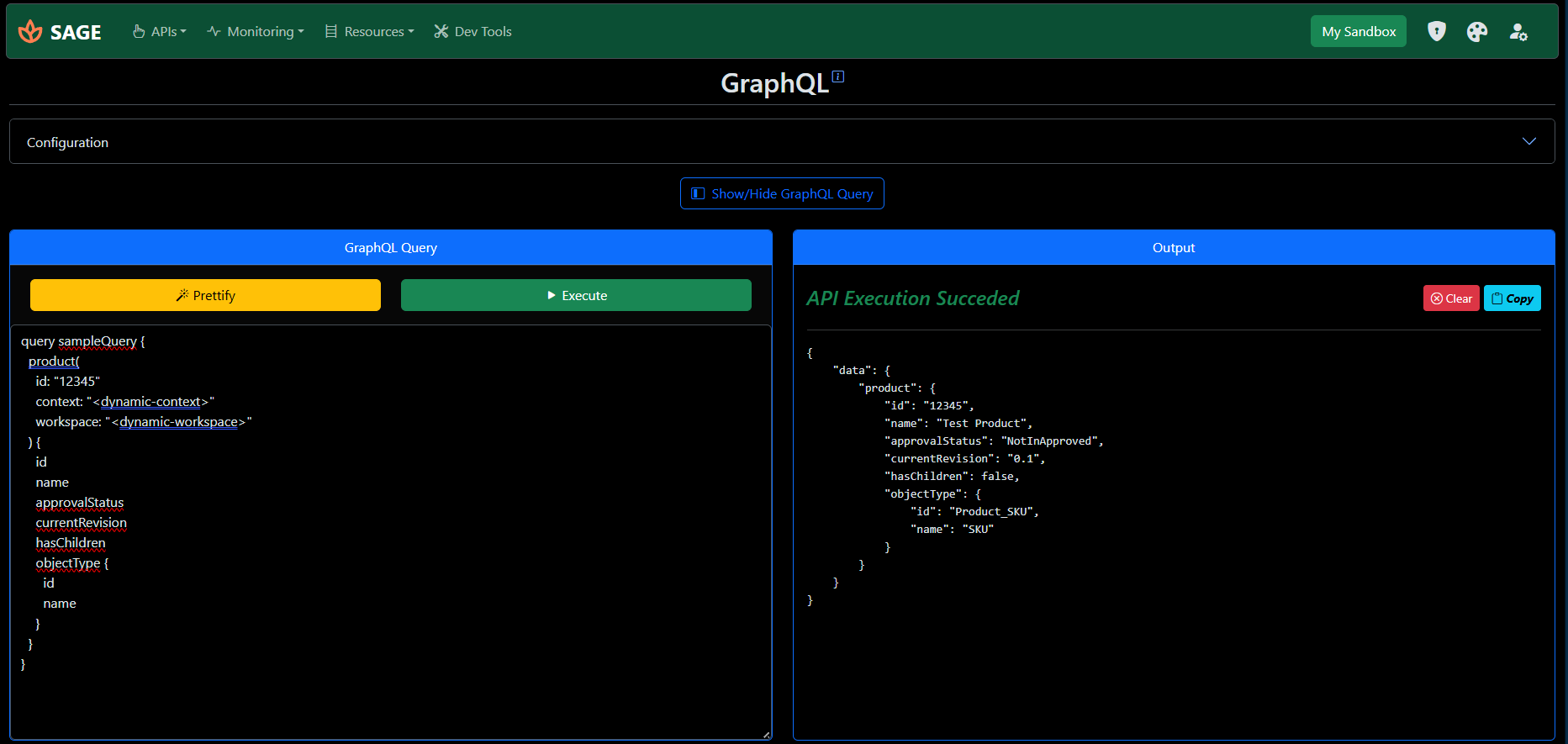
In addition to the REST API, SAGE includes a powerful interface for executing GraphQL queries against your STEP system. The layout is consistent with the REST API page, featuring the 'Configuration' accordion and an 'Output' panel. The central component is the GraphQL query editor.
The editor comes pre-populated with a sample query to help you get started. You can test the connection by replacing the placeholder ID with a valid Product ID from your STEP system and executing the query.
"<dynamic-context>" and "<dynamic-workspace>" in your query. SAGE will substitute these with the active settings at runtime.
A 'Prettify' button is available to automatically format your GraphQL query, which helps improve readability and catch syntax errors. After crafting your query, click 'Execute' to run it and view the results in the 'Output' section.
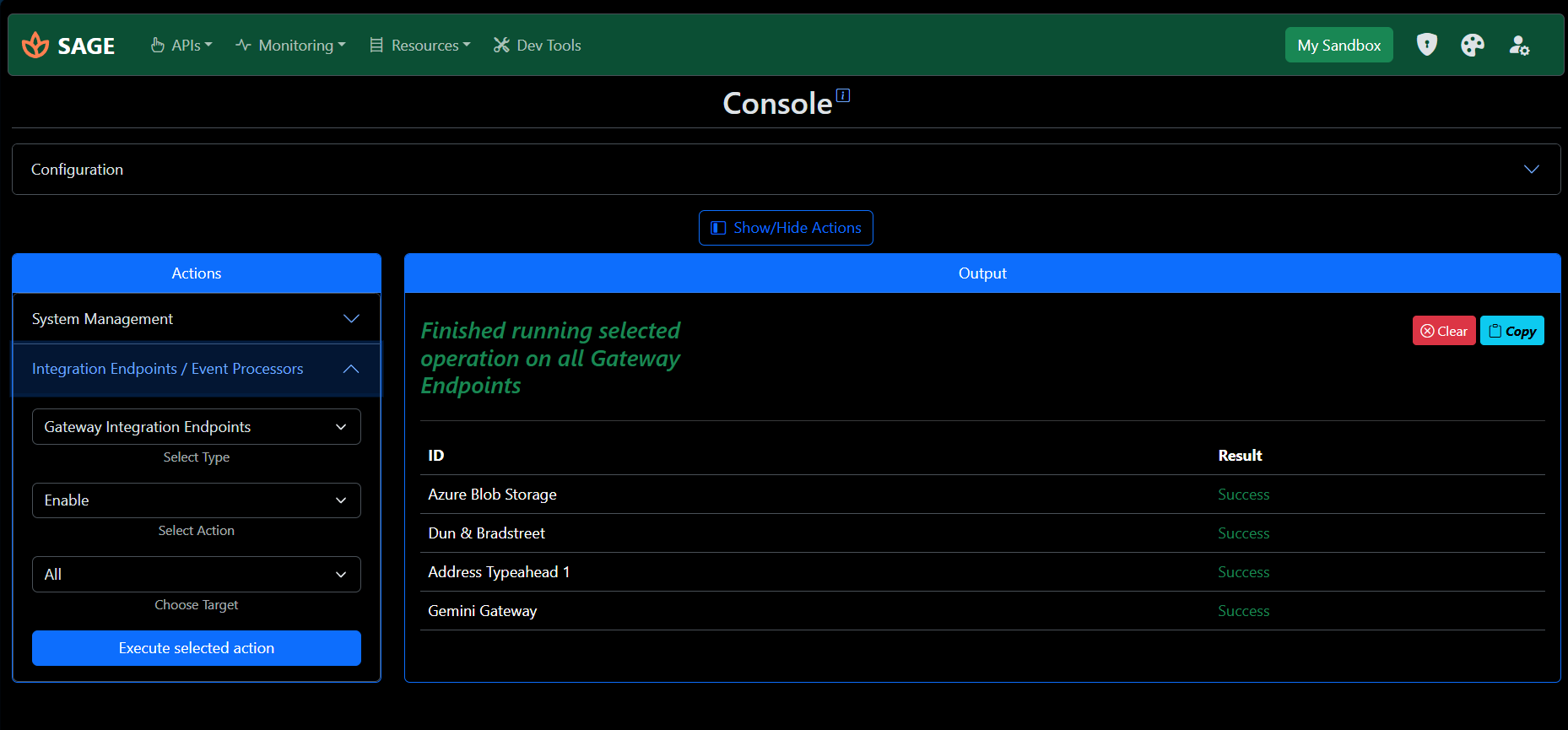
Console Actions
The Console is a unique SAGE feature that provides a simplified, task-oriented control panel. It leverages a combination of REST and GraphQL APIs to offer pre-defined actions, abstracting away the complexity of raw API calls for common administrative tasks.
The main area of the page consists of several expandable sections, each dedicated to a specific task. Each section provides a clear description of its function and a simple interface—often just a button or a dropdown—to perform the action. This allows for powerful operations to be performed with a single click.